Adding Promo Code
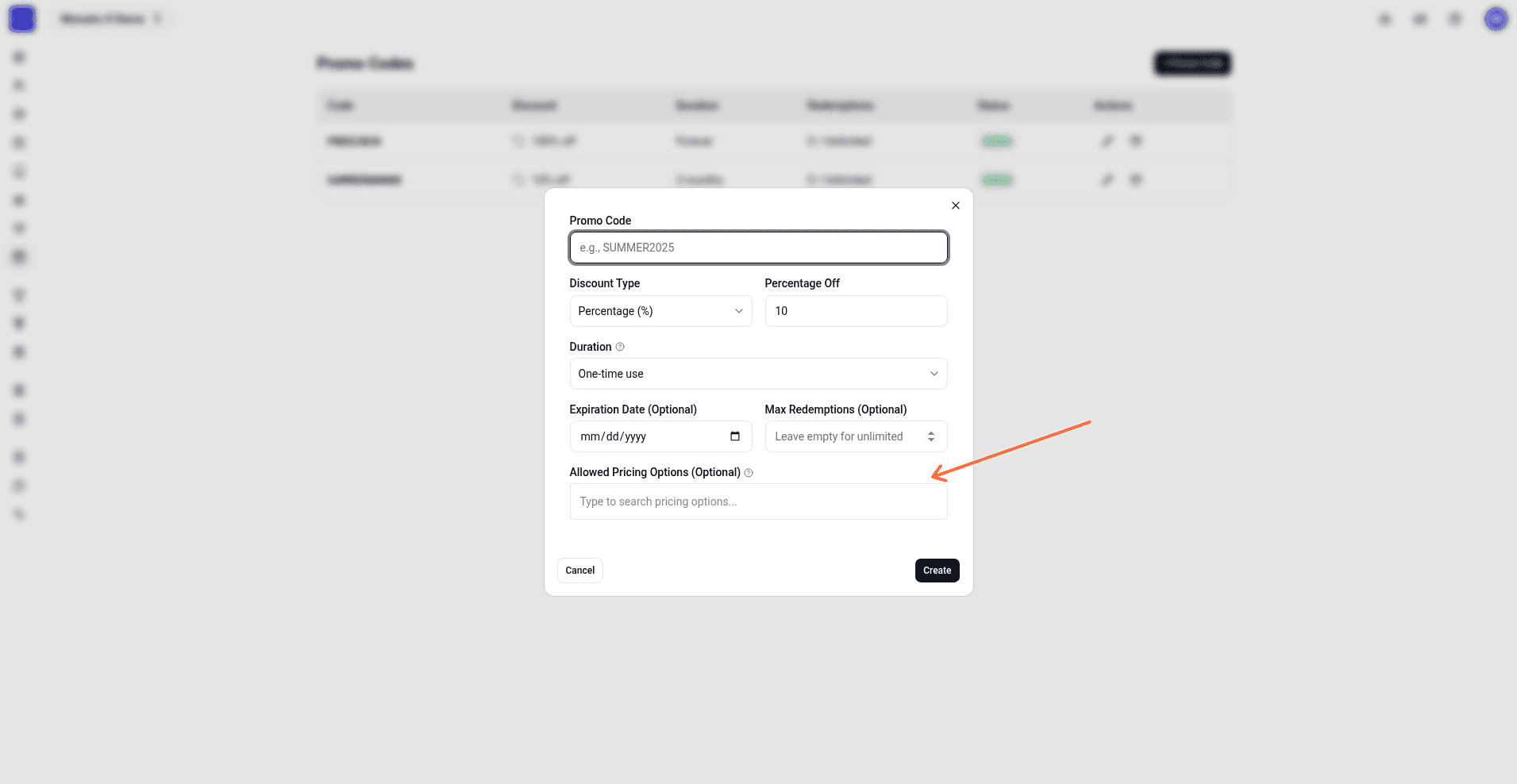
Create a promo code in the admin dashboard under Promo Codes so members can apply discounts during subscription or package purchases. The create flow lets you choose a discount type, duration, and optional restrictions.
Navigate to the Promo Codes page
Open the admin dashboard and go to the Promo Codes section under Products in the sidebar. The page shows a list of existing codes and a + Promo Code button at the top.

Create a new promo code
[!WARNING]
When you create a Fixed Amount promo code, Monstro X warns you if the discount could reduce the price of any selected plan to $0. Review the allowed pricing options before confirming.
How members use promo codes
Members enter a promo code in the Promo Code (Optional) field during subscription or package creation. The field accepts any active code that matches the selected plan and usage limits.
Manage existing promo codes
From the Promo Codes list, you can edit or archive a code:
- Edit — open the Edit Promo Code dialog and change the settings. The Active (members can use this code) checkbox controls whether the code remains usable.
- Archive — open the Archive Promo Code dialog. Once archived, members can no longer use that code.
The list shows each code's discount, duration, redemptions used versus the maximum, and current status (Active or Archived).