Add Programs and Sessions
[Add programs and sessions]
Create programs and their recurring sessions from the Programs page in your Monstro X dashboard. You can also add new sessions to an existing program at any time.
Before you start
- You must be signed in to the Monstro X dashboard.
- You need an active location.
Add a program
- From the dashboard, open the location where you want to add the program.
- In the left sidebar, click Programs.
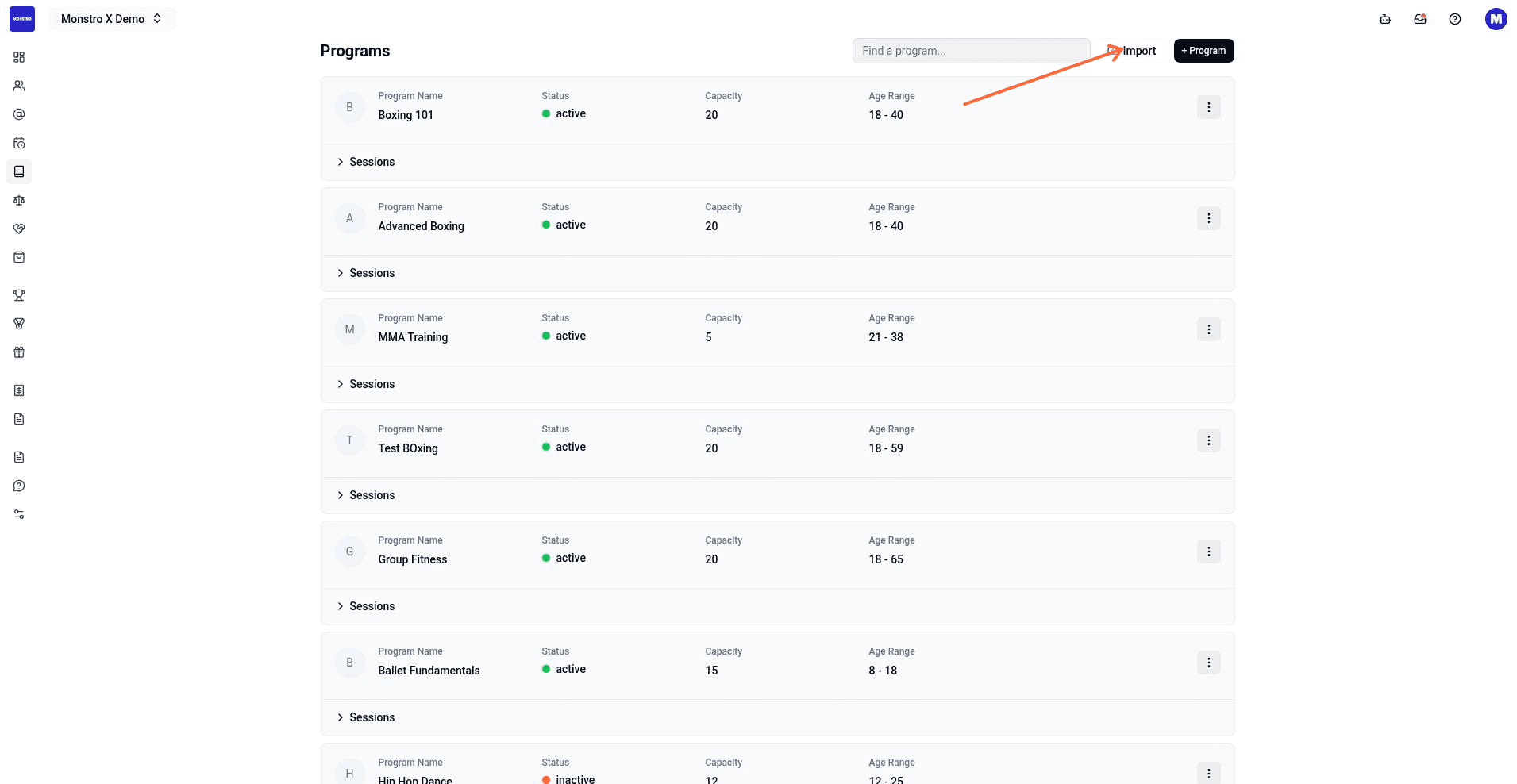
- Click + Program in the top right of the program list.
- In the program creation modal, fill out the program details:
- In the Session Scheduling section, set the day, time, and duration for the program's recurring sessions.
- Select an instructor from the Default Assigned Staff dropdown.
- Choose a Calendar Color to distinguish the program on the schedule.
- Toggle Waitlist, Make-up Class, and Cancellation Threshold as needed.
- Click Save at the bottom right of the modal.
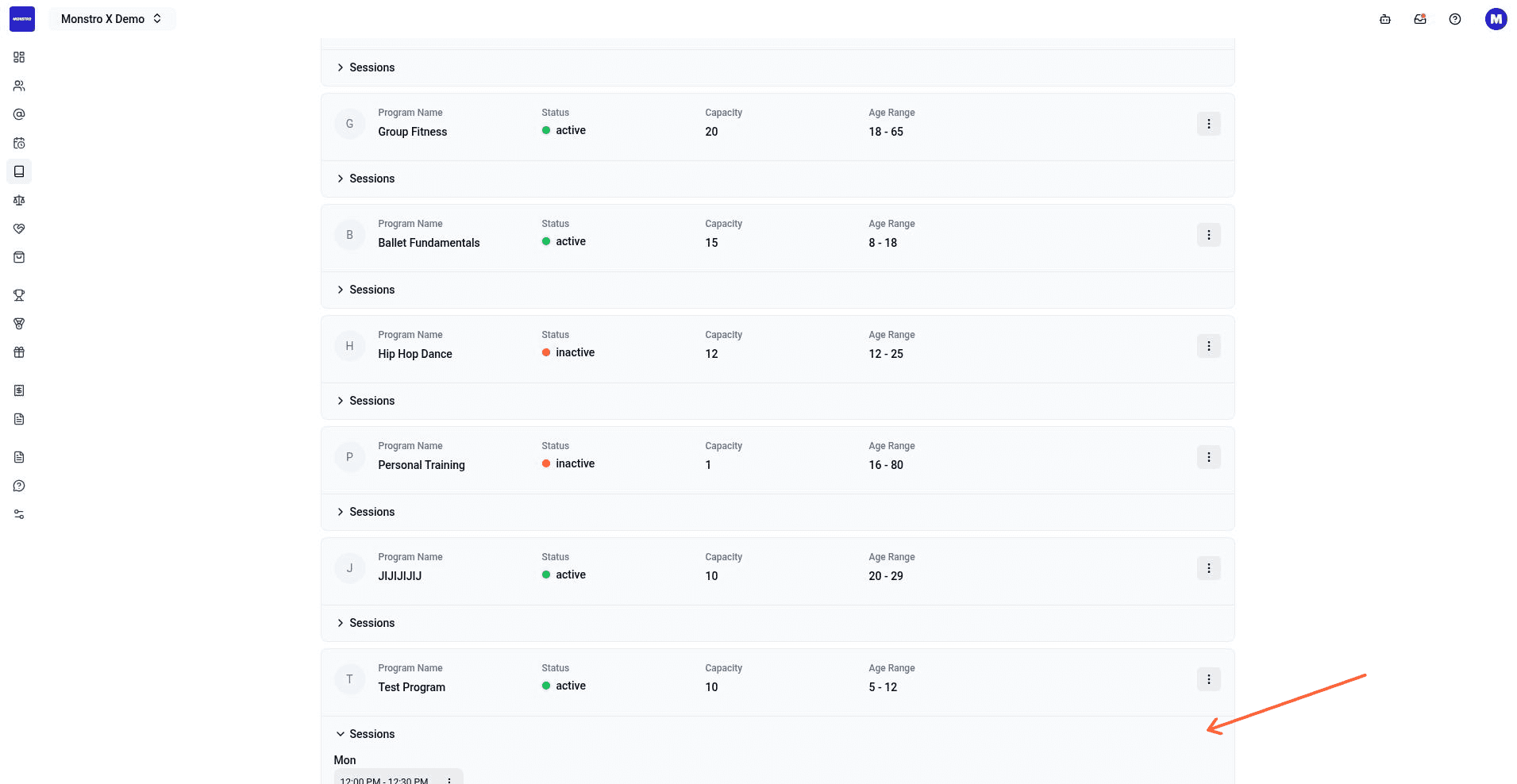
The modal closes and the program appears in the list with its sessions expanded.
Add sessions to an existing program
- On the Programs page, find the program you want to add sessions to.
- Click the more options (⋯) button on the program row.
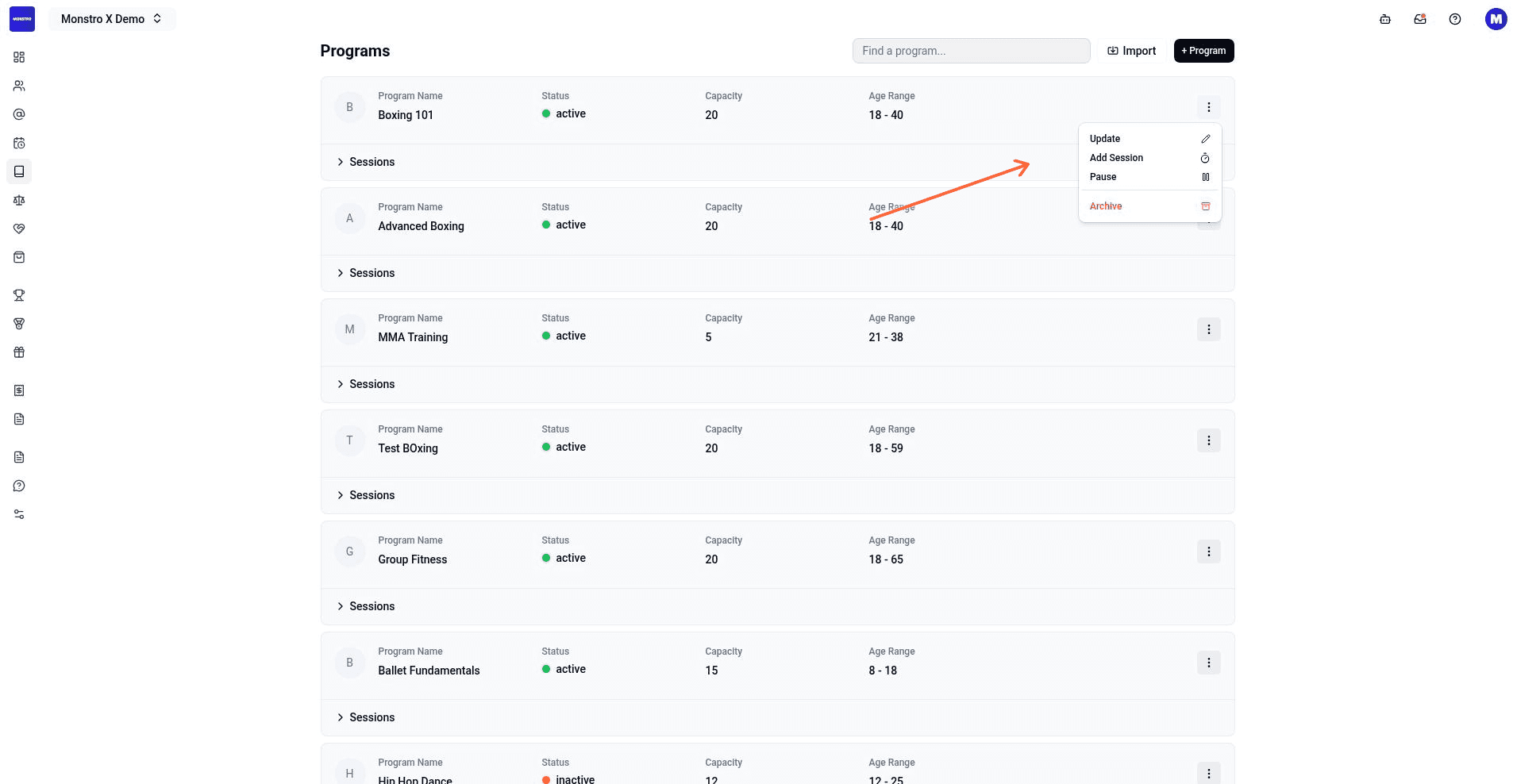
- Select Add Session.
- In the Create Session form, choose the Day, enter the Time, and set the Duration in minutes.

- Click Save.
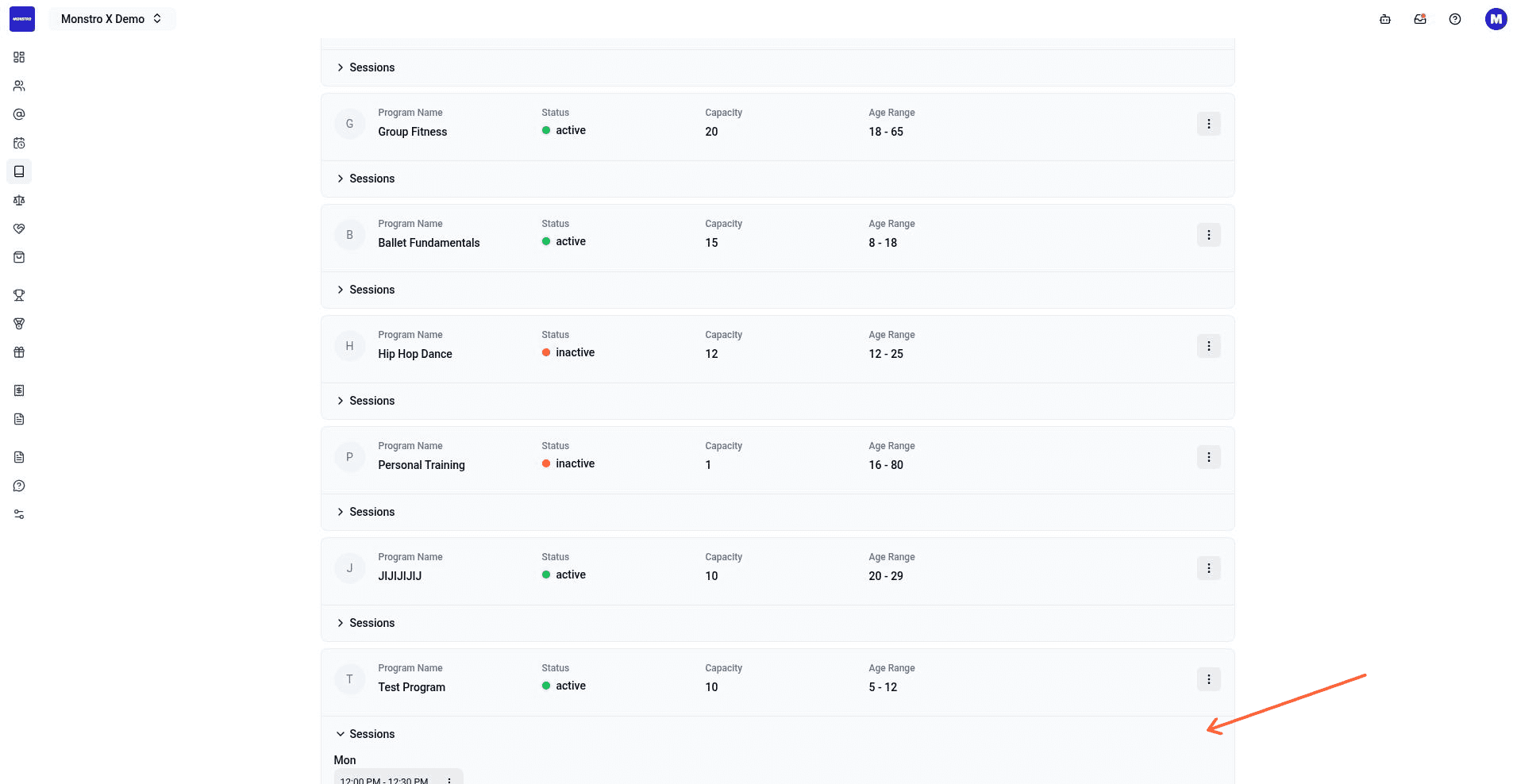
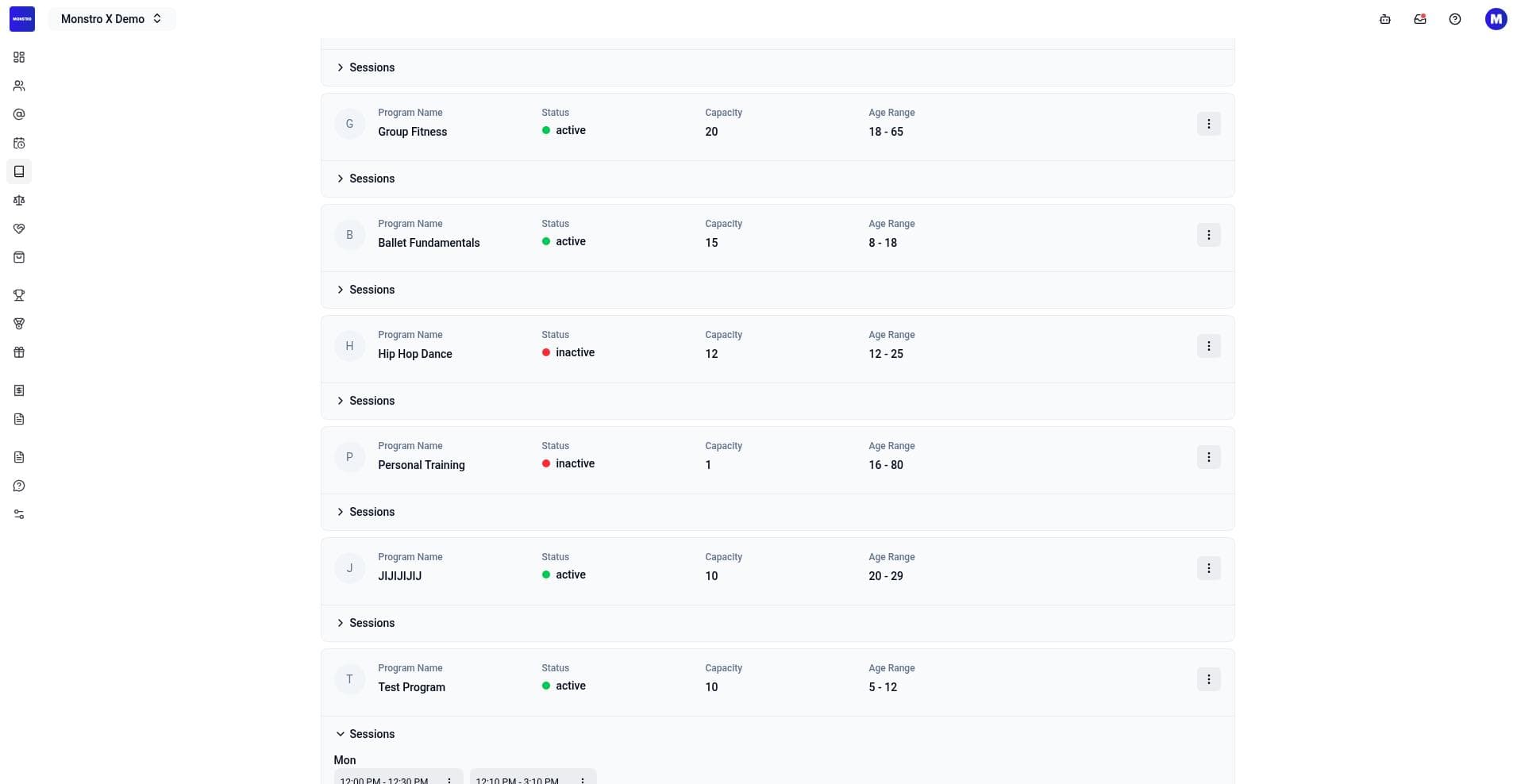
The new session appears in the expanded sessions list under the program.
Edit or cancel a program or session
- To edit program details, click the program's more options button and select Update. This opens the Update Program modal where you can change the name, description, capacity, age range, assigned staff, and calendar color. Note: you cannot edit sessions from this modal.
- To cancel an individual session, expand the program's sessions, click the more options button next to the session, and select Cancel Session.
What to do next
- Add a member and assign them to a program.
- Record attendance or schedule classes from the member profile.